
Gaasen Logo
  • Home
  • Contact
  • About
  • Customers
  • Technology Blog
    • Technology
    • Operating Systems
    • Internet Of Things - IoT
    • NAS Servers
    • List of Blog Categories

Technology Blog

Save failed with the following error: You cannot remove your own Super Admin permissions

Details
Written by: Gøran B. Aasen
Parent Category: Joomla CMS
Published: 19 June 2014
  • Tweaks
  • joomla
  • Error
  • Database
  • Fix
  • Problem
  • Joomla3x

I have serveral times lately come across some user account related problems on Joomla 3.x. Typically this is happening on sites that I have migrated from Joomla 2.5.x, so the problems might be ocurring on that version as well.


The symptoms are the following:


1) A user cannot login to the frontend of the Joomla 3.x site. After entering the login details and clicking the login button, the user is simply lead back to the login screen, without being logged in to the site. (Funny enough, a superuser can login as normal, and does not seem to be affected.)


2) The other problem I have identified is when I try to add Google "2-factor authentication" for a user, and try saving this, then I receive the error: Save failed with the following error: You cannot remove your own Super Admin permissions


Basically the way to sort this problem is the following:


  1. You need to change a setting in the database. Use phpmyadmin which is provided on most Web hosting packages to access the MySQL database for your site.
  2. Locate the _assets table in your database.
  3. The first entry should be id # 1 and have a name of root.1 and a title of Root Asset.
  4. Edit this entry and change the lft column from a 1 to a zero.
  5. Save the change.


After performing the above steps I find that both problems above are gone.
Recovering your lost Joomla admin password

Details
Written by: Gøran B. Aasen
Parent Category: Joomla CMS
Published: 10 June 2014
  • joomla
  • Database
  • Fix
  • Administrator
  • Password
  • Recovery
  • Problem
  • Joomla3x

If you find yourself in the position of having lost your Joomla administrator password, then don't despair. This password can be reset directly in the database by entering phpMyAdmin on your webhosting account.  In phpMyAdmin the simplest option is to change the password in the database to a known value.

These instructions show how to manually change a password to the word "secret" :


1) Navigate to phpMyAdmin and select the database for the Joomla! site in the left-hand drop-down list box. This will show the database tables on the left side of the screen.


2) Find and click on the table with "_users" appended in the list of tables (note: you may have a prefix that is not jos_, simply go to the _users table for your prefix).


3) Click on the "Browse" button in the top toolbar. This will show all of the users that are set up for this site.


4) Find the user whose password you want to change and press the Edit icon for this row.


5) A form will display that allows you to edit the password field.

Copy the value "d2064d358136996bd22421584a7cb33e:trd7TvKHx6dMeoMmBVxYmg0vuXEA4199" into the password field and press the Go button.


6) phpMyAdmin should display the message "Affected rows: 1". At this point, the password should be changed to "secret".


7) Log in with this user and password and change the password of this user to a secure value. Check all of the users using the User Manager to make sure they are legitimate. If you have been hacked, you may want to change all of the passwords on the site.

Cleaning out the Joomla Redirect Links table

Details
Written by: Gøran B. Aasen
Parent Category: Joomla CMS
Published: 07 June 2014
  • Tweaks
  • joomla
  • Database
  • Tip
  • Joomla3x

After a while the Joomla redirect links table tend to be cluttered with a lot of links, and you might want to remove all these as a part of your maintenance.


To clean out these can take an awful long time, and after these are deleted, you need to do the same again to clear out the trash.


However, the easiest way to clean out all these links and empty the redirect manager table alltogether is to simply empty the table #__redirect_links by using phpmyadmin.

Windows Start Button replacement

Details
Written by: Gøran B. Aasen
Parent Category: Operating Systems
Published: 05 June 2014
  • Windows
  • Tip
  • Software for Windows

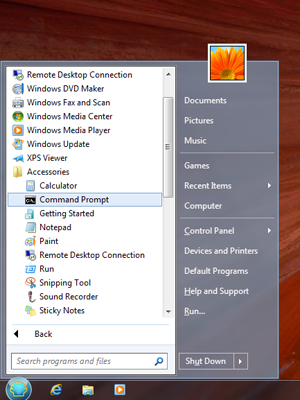
classicshellstartmenuHave you got Windows 8, and are still looking for the good old start button?
 

Download Classic Shell from www.classicshell.net


Highly recommendable.


Easiest way to install Linux Mint

Details
Written by: Gøran Aasen
Parent Category: Operating Systems
Published: 07 March 2014
  • Tip
  • Linux
  • Linux Mint
  • Operating System

To install Linux Mint most people download the dvd image and create a bootable DVD.


There is however a much easier way.


Simply create a bootable USB stick with Linux Mint by downloading the "Universal USB Installer".


You can find the UUI and instructions on http://www.pendrivelinux.com/universal-usb-installer-easy-as-1-2-3/


Protected Admin logins for CMS platforms

Details
Written by: Gøran Aasen
Parent Category: Joomla CMS
Published: 07 March 2014
  • joomla
  • extension
  • Fix
  • Administrator
  • Security Recommendation

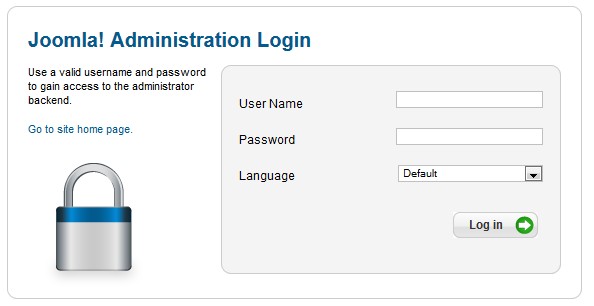
joomla-loginJoomla is a great platform for developing portals and websites.


What many people tend to forget is that CMS platforms like Joomla and Wordpress are managed through an online administrator login.


The disadvantage with this is that hackers are trying to guess the passwords using automated tools.


On a standard Joomla website a hacker can find the administrator login page by adding /administrator to the website url.


Likewise on a standard Wordpress site you can simply add /wp-admin to the url to get to the admin login.


Example:

Your site is:    www.example.com


Joomla

If your site is a Joomla site then the administrator login will by default be:

www.example.com/administrator


Wordpress

If your site is a Wordpress site then the administrator login will by default be:

www.example.com/wp-admin


What to do ?

To improve the security of my sites I therefore always disable the default administrator url, and also monitor all attempts to access the default admin login url's. For Joomla sites you could e.g. use the extension called Adminexile which will notify you by email of any attempt, and also dynamically ban perpetrators for a timelimited period.


By doing so, you can monitor all such hacker attempts and take further measurements should they be persistent.


  1. Microsoft Windows Xp coming to an end

Page 4 of 5

  • 1
  • 2
  • 3
  • 4
  • 5
  • Login
  • Sitemap
  © Copyright 2007-2026 - Gaasen.Com - webdesign by GaaTec
Cookies user preferences
We use cookies to ensure you to get the best experience on our website. If you decline the use of cookies, this website may not function as expected.
Accept all
Decline all
Functional
Tools used to give you more features when navigating on the website, this can include social sharing.
Joomla!
Accept
Decline
Analytics
Tools used to analyze the data to measure the effectiveness of a website and to understand how it works.
Google Analytics
Accept
Decline
Google Analytics
Accept
Decline
Unknown
Unknown
Accept
Decline
Save